How to Password Protect a Notepad or Text File in Windows
Notepad files (.txt) are universally accessible, making them terrible at keeping secrets. Here is a complete guide to securing your plain text notes—from native Windows workarounds to dedicated file vaults and secure internal note-taking software.

Can you password protect a Notepad file natively in Windows? No. Windows 10 and 11 do not offer a built-in feature to set a password on a specific .txt file. The native Encrypting File System (EFS) ties the file to your Windows user account, but it does not prompt for a password when you open it. To force a password prompt, you must use a third-party tool like 7-Zip, a Notepad++ encryption plugin, or utilize the secure note-taking feature inside a dedicated locking program.
- Why Notepad Files Are Vulnerable
- Method 1: Windows Native EFS (No Password Prompt)
- Method 2: Encrypt a Text File with 7-Zip
- Method 3: Notepad++ Encryption Plugin
- Our Recommendation for Fast Access & Syncing
- How to Secure Text Files and Notes Step-by-Step
- Methods Comparison
- Deep Dive: Encryption Standards & Syncing
- Free vs. Full Version Limitations
- Troubleshooting & Recovery
- Frequently Asked Questions
The Problem with Plain Text Files
If you search for how to password protect a Notepad text file in Windows 11, you might be frustrated to find that Microsoft has never included this basic feature. Word documents and PDFs have built-in password mechanisms. Plain text (.txt) files do not.
Because text files strip out all complex formatting, they also strip out security headers. Anyone who has access to your hard drive, USB drive, or cloud folder can open, read, copy, and edit a standard Notepad file. Document password protection for text files requires wrapping the file in a secure container, altering the text itself through encryption, or abandoning the .txt format entirely in favor of an encrypted note-taking vault.

Below, we outline exactly how to lock a document from editing and unauthorized viewing using the most reliable methods available today.
Best Ways to Secure Text Files in Windows
Depending on whether you need a quick free fix or daily seamless access across devices, here is how each approach works.
Method 1: Windows Encrypting File System (EFS)
Windows Pro and Enterprise editions include EFS. It allows you to encrypt a file so that other Windows user accounts on the same computer cannot open it.
- Right-click your Notepad file and select Properties.
- Click the Advanced button under the General tab.
- Check the box for Encrypt contents to secure data.
- Click OK, then Apply.
The critical limitation: This does not password protect a file in Windows the way most people expect. If you are logged into your Windows account, the file opens normally without asking for a password. It only stops other user accounts or network attackers. It also does not protect the file if you copy it to a standard USB drive.
Pros
- Built into Windows (Pro/Enterprise)
- No software to install
Cons
- No password prompt when opening
- Useless if you share your logged-in PC
- Not available on Windows Home edition
Method 2: Encrypt a Text File with 7-Zip
If you want a true password prompt, creating a 7-Zip password protected archive is the most common free method. It places your text file inside a locked digital envelope using top-tier encryption standards.
- Download and install 7-Zip.
- Right-click your Notepad file and choose 7-Zip > Add to archive...
- In the Archive format dropdown, select zip or 7z.
- In the Encryption section, type your password twice.
- Ensure the Method is set to AES-256, then click OK.
Delete the original unprotected Notepad file once the zip is created. To read it again, you must open the zip and enter the password.
Pros
- Strong AES-256 encryption
- Creates a real password prompt
Cons
- Tedious for files you edit daily
- You must remember to manually shred the original file
Method 3: Notepad++ Encryption Plugin
If you prefer an upgraded text editor, Notepad++ can encrypt files directly using community plugins like NppCrypt.
- Open Notepad++ and go to Plugins > Plugins Admin.
- Search for NppCrypt and install it.
- Type your text, then highlight it.
- Go to Plugins > NppCrypt > Encrypt and set a password.
Your plain text will turn into a scrambled block of characters. You must decrypt it using the plugin every time you want to read it.
The Tool We Recommend for Seamless Protection
Archiving files into ZIPs works for backups, but it is incredibly frustrating for notes you need to update daily. For real-time document password protection without the zip-and-extract hassle, we recommend dedicated locking software.
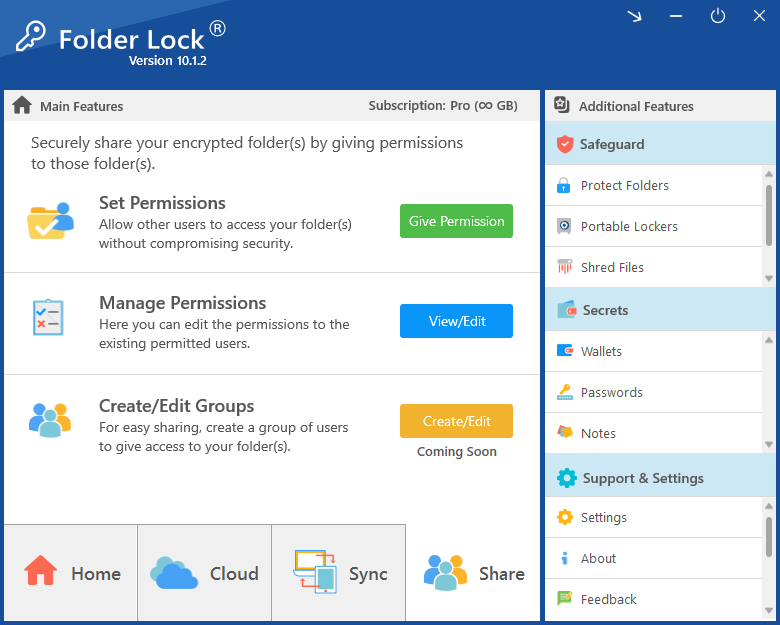
 [ Folder Lock Dashboard Visual ]
Folder Lock bypasses Windows limitations entirely. Instead of zipping your text file, it allows you to drag and drop your Notepad files into a dynamic encrypted vault. Even better, it includes a built-in Secure Notes feature that eliminates the need for .txt files altogether—allowing you to write, save, and sync encrypted thoughts directly to your iPhone or Android.
How to Secure Text Files and Notes Step-by-Step
If you choose to use Folder Lock, you have two primary ways to secure your plain text data: locking an existing Notepad file, or creating a secure note natively inside the app.
Approach A: Moving an Existing .txt File into a Desktop Vault
Open Your Encrypted Vault
Launch the application and authenticate with your master credentials. Navigate to the Desktop Locker section and click "Open." This temporarily mounts your secure vault as a visible drive in Windows Explorer.
Transfer the File
Locate the unprotected Notepad file on your computer. Drag and drop (or cut and paste) the file directly into the open Desktop Locker window.
Seal the Vault
Return to the main application interface and click Encrypt. The virtual drive will immediately vanish from Windows Explorer, rendering your text file completely inaccessible and invisible to anyone without the master password.

Approach B: Using the Built-In Secure Notes Feature (Recommended)
For maximum security, avoid creating `.txt` files on your desktop entirely. Instead, use the software's dedicated internal environment.
Navigate to Secrets
Inside the application, open the Secrets tab located in the main navigation menu. This area manages highly sensitive text data, including wallets, passwords, and notes.
Create a New Note
Select Notes, then click "Add Note." Give your note a title (e.g., "Private Journal" or "Server Configurations").
Write and Auto-Secure
A secure text editor will open. Type or paste your confidential information here. As soon as you close the window, the text is instantly encrypted and saved. If you have cloud syncing enabled, this note will securely mirror to your linked mobile devices.

Beyond Basic Hiding: How the Encryption Architecture Works
When evaluating how to protect a document without the recipient needing complex setups, it helps to understand what security tools actually do under the hood. Basic file lockers simply change a file's visibility settings—a trick easily bypassed. True security requires structural changes.
Standard hidden folders become instantly visible if a user boots their PC into Windows Safe Mode. Advanced locking software utilizes a specialized system-level driver to intercept file requests. This means that protected folders remain completely cloaked and inaccessible even during a diagnostic Safe Mode boot.

Older encryption tools required you to pre-allocate a massive chunk of your hard drive (e.g., creating a fixed 50GB vault). Modern solutions use dynamic scaling. Your secure vault starts at a tiny file size and expands automatically in real-time only as you drag more text files and data into it.
If you need to securely send an encrypted text file to a colleague, you shouldn't have to text them the password. By utilizing 4096-bit RSA asymmetric cryptography, the software allows you to grant access directly to another user's registered account. They can open the file using their own master credentials, ensuring the encryption keys are never transmitted over the internet.
Rather than locking a text file solely on your local hard drive, modern tools integrate with Google Drive, Dropbox, and OneDrive. The software scrambles the data locally before sending it to the cloud. This means you can open the companion app on your iOS or Android device, authenticate, and read your secure notes on the go—while the cloud provider itself only ever sees unreadable, encrypted data.

Document Password Strength — What Really Matters
A locked Notepad file is only as secure as the password guarding it. Test your intended document password below. (This runs entirely in your browser; your password is not sent anywhere).
Text File Protection Method Comparison
| Method | Password Prompt? | Security Level | Best For | Cost |
|---|---|---|---|---|
| Windows EFS | No | Moderate (User-tied) | Shared office computers | Free (Pro OS only) |
| 7-Zip Archive | Yes | High (AES-256) | Emailing text files securely | Free |
| Notepad++ Plugin | Yes | Moderate | Coders and developers | Free |
| Folder Lock Software | Yes | High (AES-256 + Cloaking) | Daily editing & mobile syncing | Paid (Free Trial) |
Folder Lock Limitations: Free vs. Full Version
If you choose to use dedicated security software, it is important to understand what the evaluation version allows compared to the full license.
Free Evaluation
Basic local protection to test the software.
- 1 GB maximum locker size
- Syncs across up to 2 devices
- Basic file shredding capabilities
- Cleans Windows privacy history
- Includes mobile app access
- ✗ Cannot create portable USB vaults
- ✗ Basic folder locking disabled
- ✗ Secure remote sharing disabled
Pro Version
Unrestricted protection for permanent use.
- Unlimited locker storage size
- Syncs across up to 5 devices
- Create standalone Portable Lockers (.flk)
- Kernel-level file and folder cloaking
- Unlimited secure asymmetric file sharing
- No trial reminders or pop-ups
Troubleshooting & Recovery Rules
When you restrict document access, the biggest risk isn't hackers—it's locking yourself out. Here is what you need to know about high-risk password situations and uninstallation safeguards.
How to recover a password-protected text file?
If you forget the password to a 7-Zip archive containing your Notepad file, there is no "forgot password" button. The encryption is mathematically unbreakable. Your only option is to use brute-force recovery software to guess the password, which only works if the password was short or simple.
Forgot your Folder Lock password? Here is how to recover access
If you are the legitimate owner and locked your files with professional software, do not attempt to crack the program. Instead:
- Check your master password hint (if you set one during initial setup).
- Locate the serial number sent to your email when you purchased the software. Support teams can use your registered email and serial number to help verify ownership and assist with master key recovery options.
- Do not reinstall the software in an attempt to wipe the password, as this may permanently sever the link to your encrypted vaults.
What prevents someone from just uninstalling the security software?
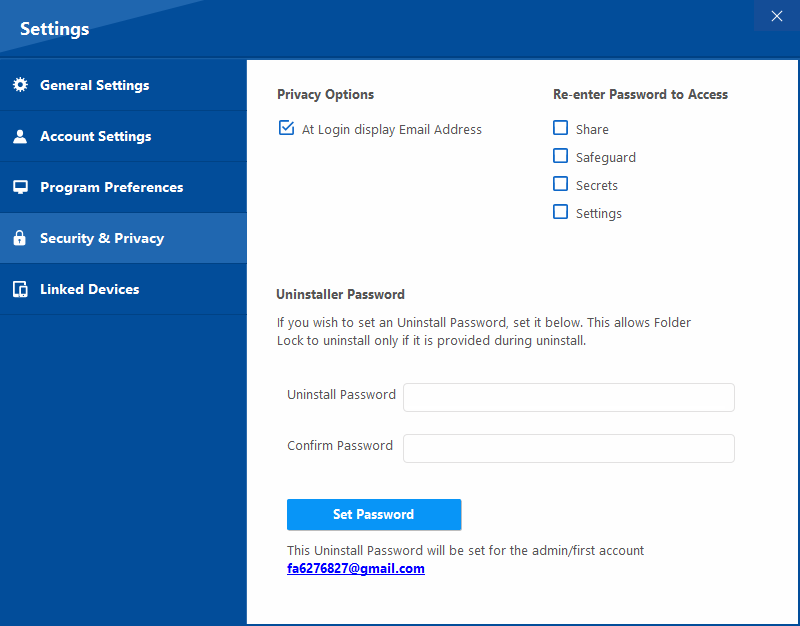
A common vulnerability with basic protection tools is that an unauthorized user can simply delete the software to expose the hidden files. High-end tools counter this by allowing you to set a dedicated Uninstaller Password. If enabled in the privacy settings, the software cannot be removed from the Windows Control Panel without proper authentication.
Can I password protect a USB drive Windows 10/11?
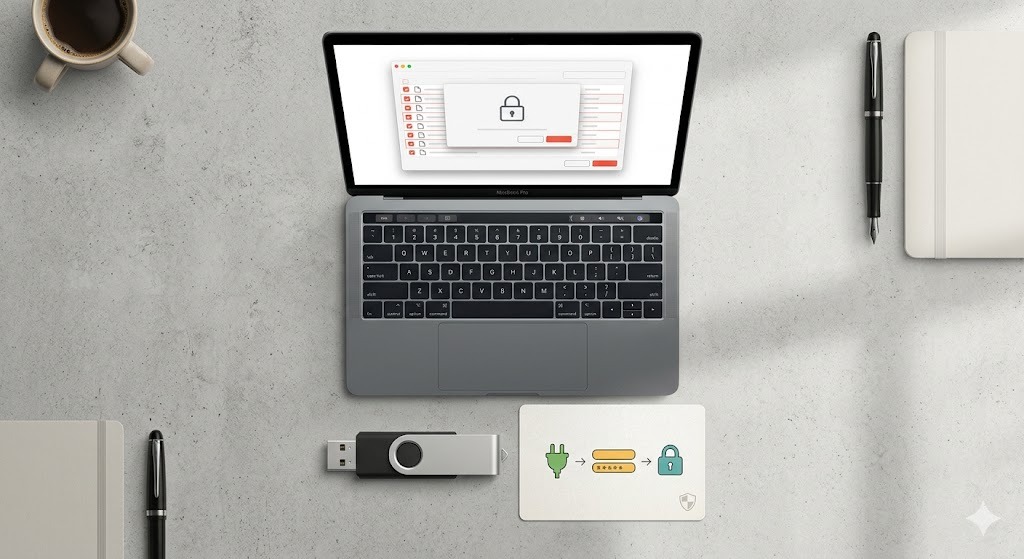
Yes. If your Notepad files are on a flash drive, it is often easier to protect the entire drive. You can use Windows BitLocker To Go (requires Windows Pro) or convert your files into a standalone portable `.flka` vault, which acts as a self-contained, password-protected executable directly on the USB stick.

Frequently Asked Questions
Q1. How to password protect a text file on Mac?
Unlike Windows, macOS has native password protection for text files, but only if you use Apple's apps. You can open your plain text file in the native Pages app, choose File > Set Password, and save it. Alternatively, use Disk Utility to create an encrypted DMG folder to hold your Notepad files.
Q2. Can you password protect a file in Windows without software?
No, not with a standard password prompt. As explained above, Windows EFS encrypts files to your user account, but does not ask for a password when opening the file. Third-party software is required to enforce an actual login gate.
Q3. How do I protect a document without the recipient needing software?
If you are sharing the document safely, the best way to secure documents before emailing is to use Word or convert the text to PDF, as standard PDF readers natively support passwords. If it must stay a text file, place it in a 7-Zip archive; the recipient will need a free extraction tool like WinRAR or 7-Zip to open it.
Q4. Can i create a password protected folder in google drive?
Google Drive does not natively support password-protecting specific folders. If you share a standard link, anyone with the link can view it. You must encrypt the text files on your desktop before uploading them. Using integrated cloud lockers automates this process—scrambling the data locally and then syncing the unreadable ciphertext up to Google Drive.

Related Security Tools
These tools are developed by NewSoftwares.net, the same team behind our top recommendation.
Copy Protect
Prevents copying, sharing, and piracy of media files by converting them into standalone executables that only run on authorized devices.
Folder Protect
A lightweight alternative focused purely on access control. Set files to be invisible, inaccessible, or read-only without full encryption.
USB Secure
Portable password protection specifically designed to run directly from USB flash drives and external hard drives without installation.
Vault (iOS/Android)
A dedicated mobile application to hide and encrypt photos, videos, and private notes directly on your smartphone.
Our Verdict
Securing a simple text file shouldn't require complex IT knowledge. If you only need to send a secure text file via email once, 7-Zip is the best free option. However, if you keep a daily journal, password list, or private notes in Notepad and need to access them constantly, the zip-extract-delete cycle is too frustrating.
For daily, seamless access, we recommend abandoning the `.txt` format entirely. Using the dedicated Secure Notes feature inside Folder Lock provides a much safer environment that automatically encrypts your text and syncs it securely to your mobile devices.